


Multi Factor Authentication Setup Guide
Case Study Added: 06/01/26
Multi Factor Authentication (MFA) is a security measure that requires two or more forms of verification to access your account. Instead of relying solely on a password, MFA adds an extra layer of protection by requiring you to use something that you know (your password) and something you have (such as your phone with an authenticator app) to log into your account. This makes it significantly harder for unauthorised individuals to gain access - even if they know your password. This guide provides step-by-step instructions for setting up MFA using Google Authenticator, Microsoft Authenticator, Email, and SMS methods.
Best Practices & Security Tips
Use app-based authentication (Microsoft or Google Authenticator) for stronger security.
Avoid using SMS as your primary method due to SIM swap risks.
Keep your authenticator app updated.
Never share your MFA codes with anyone.
General Setup Steps
Log into your GlobalScot account.
If you do not already have MFA setup, you will be taken directly to the secure your account page where you can set up your MFA.
If you already have MFA set up, you will be prompted to complete your authentication before gaining access to the site.
If you would like to amend your MFA preferences, you can do so in settings.
Scenario 1: Google Authenticator
Step 1: If you haven’t already, download the Google Authenticator app from the App Store or Google Play and have it open on your mobile/tablet.
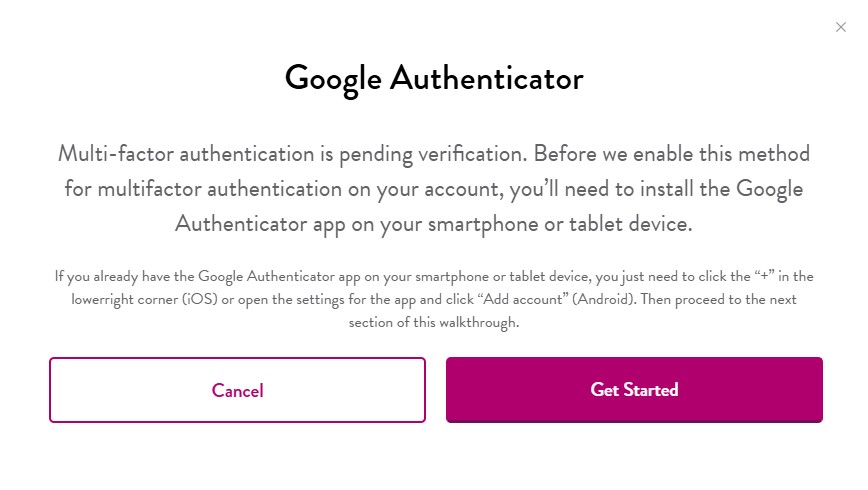
Step 2: Within the GlobalScot website, on the secure your account page, click on the link - set up Google authentication. Follow the on-screen instructions and click on the get started button.
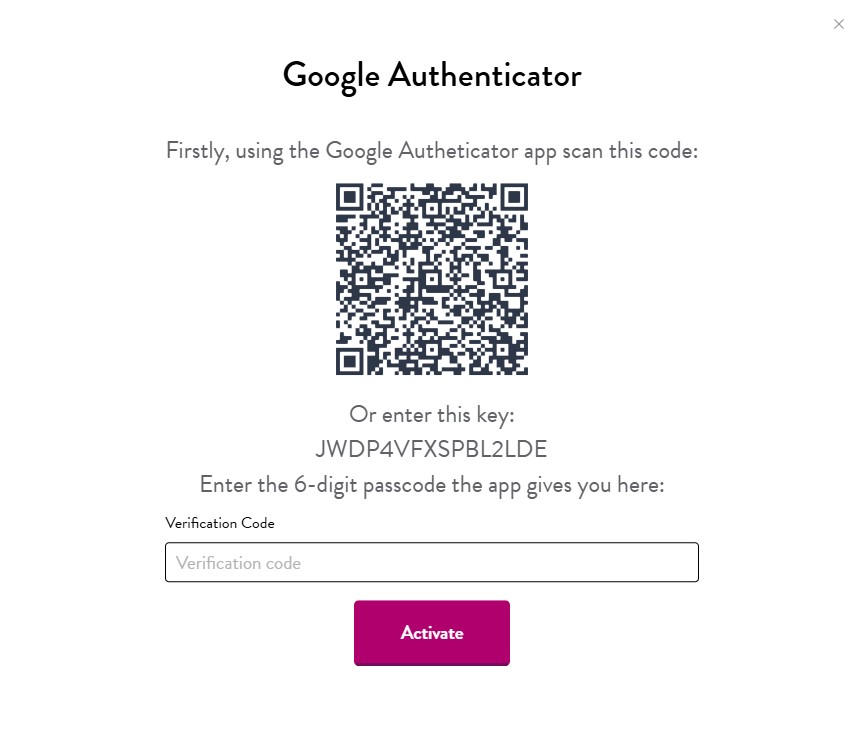
 Step 3: Follow the on-screen instructions - Scan the QR code shown on the screen using the Google authenticator app or enter the 16-character key shown on the screen into the Google authenticator app. Enter the 6-digit code generated by the Google authenticator app into the verification code box on the website. Click the activate button.
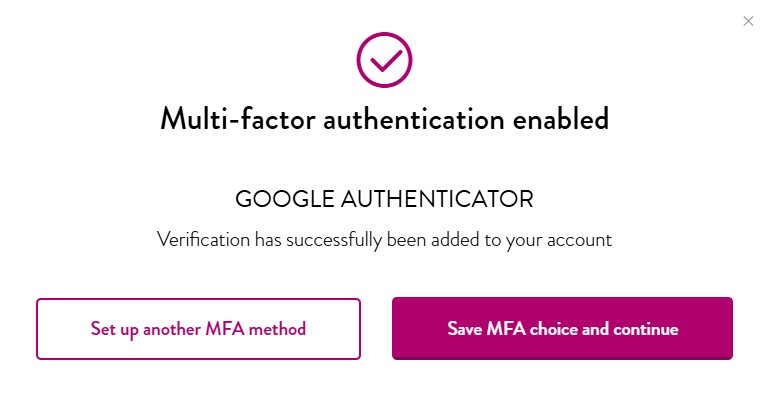
 Step 4: You have now enabled Google authenticator as your MFA. You have the choice to set up another MFA method or save MFA choice and continue.
 Scenario 2: Microsoft Authenticator
Step 1: If you haven’t already, download the Microsoft Authenticator app from the App Store or Google Play and have it open on your mobile/tablet.
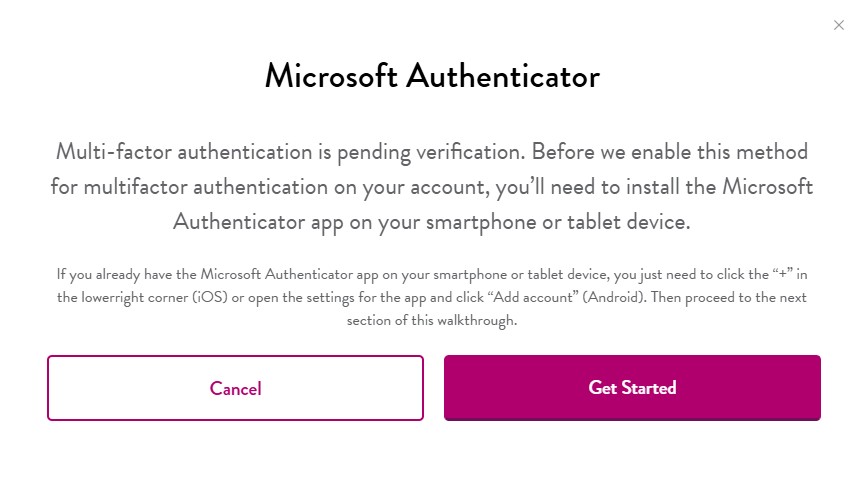
Step 2: Within the GlobalScot website, on the secure your account page, click on the link - set up Microsoft authentication. Follow the on-screen instructions and click on the get started button.
 Step 3: Follow the on-screen instructions - Scan the QR code shown on the screen using the Microsoft authenticator app or enter the 16-character key shown on the screen into the Microsoft authenticator app. Enter the 6-digit code generated by the Microsoft authenticator app into the verification code box on the website. Click the activate button.
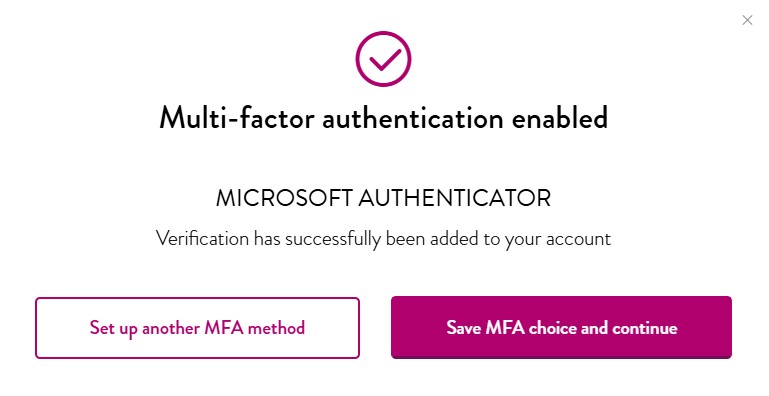
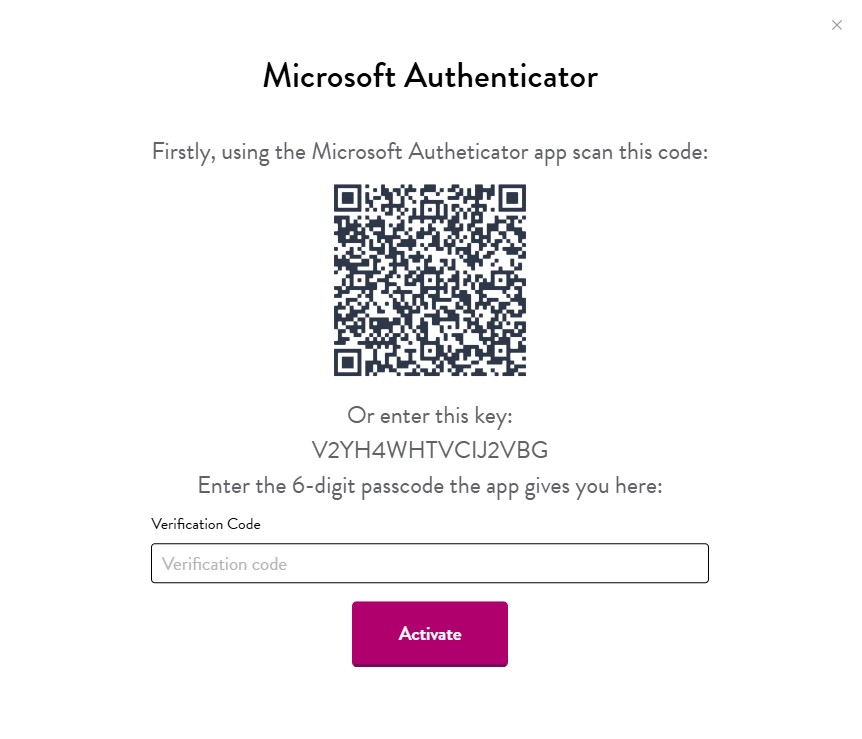 Step 4: You have now enabled Microsoft authenticator as your MFA. You have the choice to set up another MFA method or save MFA choice and continue.
 Scenario 3: Email Backup Authentication
Step 1: Within the GlobalScot website, on the secure your account page, click on the Set up backup email link.
Step 2: Enter your back up email address and click on the verify button.
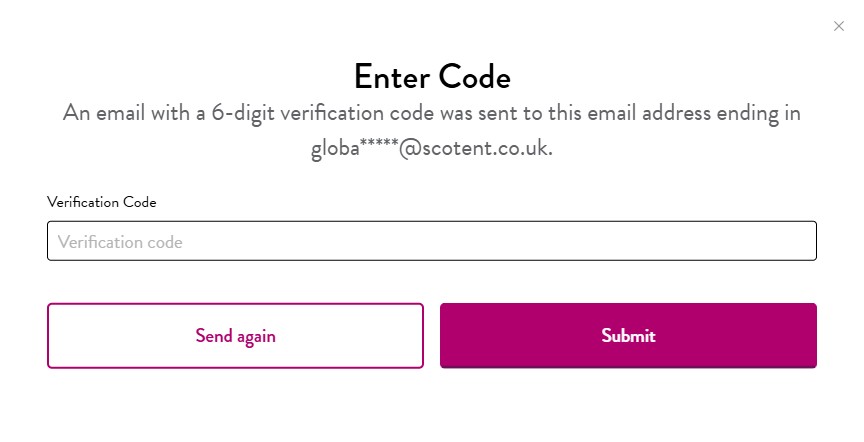
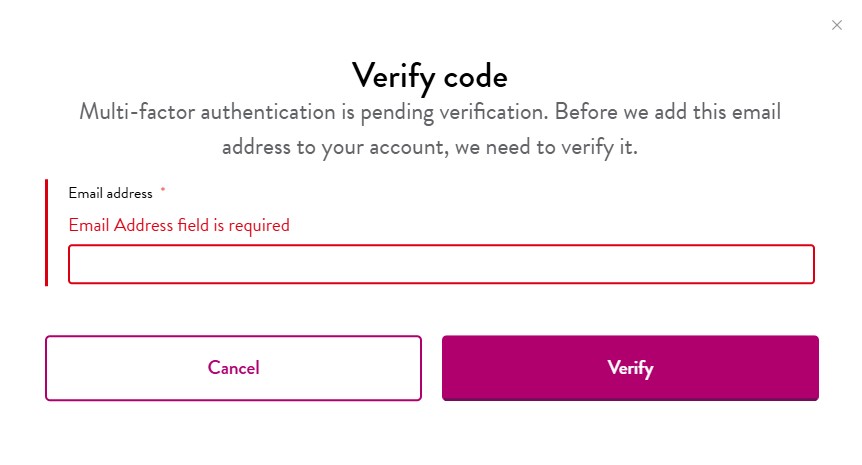 Step 3: You’ll receive a one-time verification code into your backup email address. It may take a few minutes for the email to arrive (check your spam), if it doesn’t arrive after 5 minutes use the send again button. You will have 30 minutes to use this code before it expires.
Step 4: Enter the code in the setup screen to confirm.
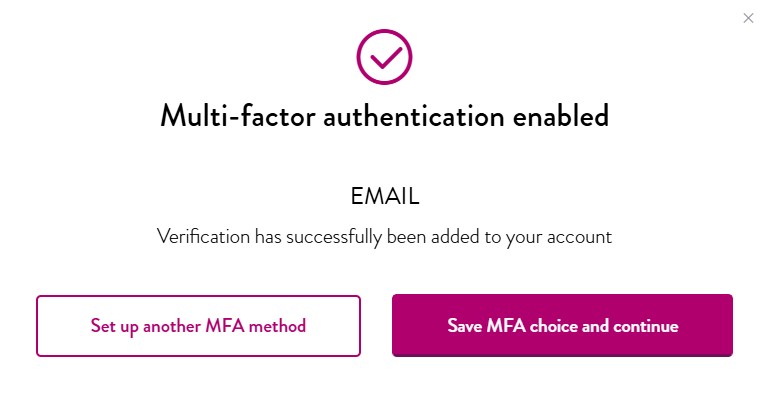
 Step 5: You have now enabled Email authentication as your MFA. You have the choice to set up another MFA method or save MFA choice and continue.
 Scenario 4: SMS Verification
Step 1: Within the GlobalScot website, on the secure your account page, click on the Set up SMS authentication link.
Step 2: Enter your mobile phone number and click on the send code button.
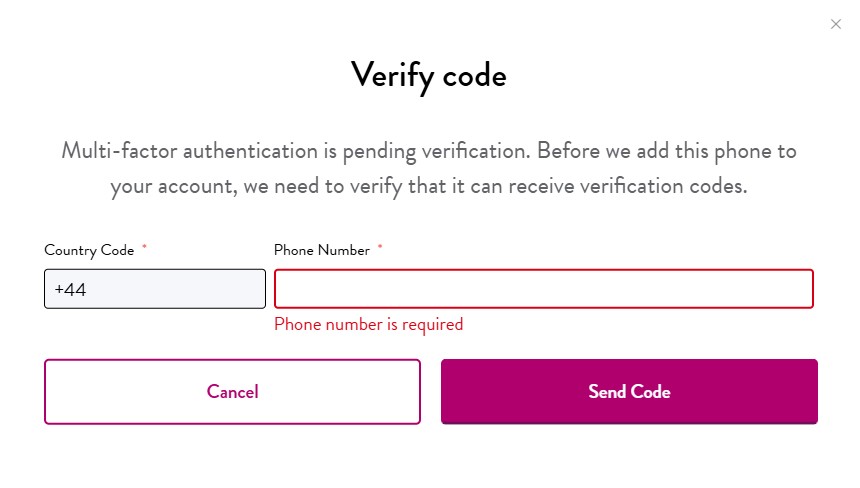 Step 3: You’ll receive a 6-digit verification code via SMS to the mobile number you have entered.
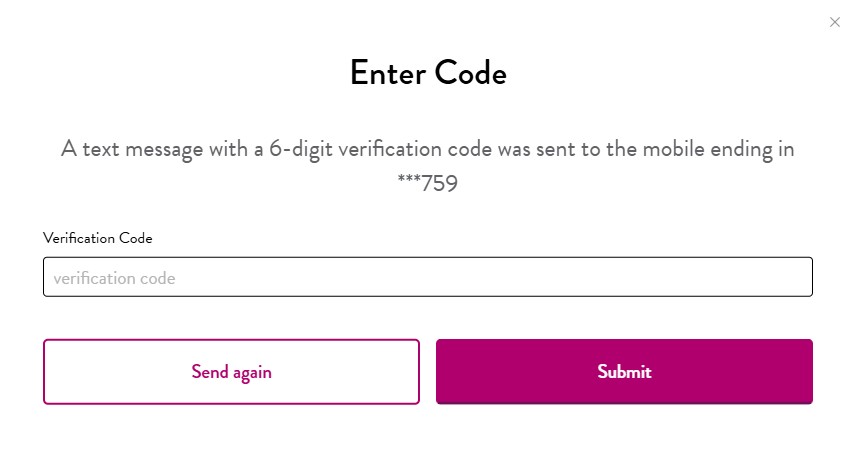
Step 4: You will be asked to enter the 6-digit verification code and click on the submit button to complete set up.
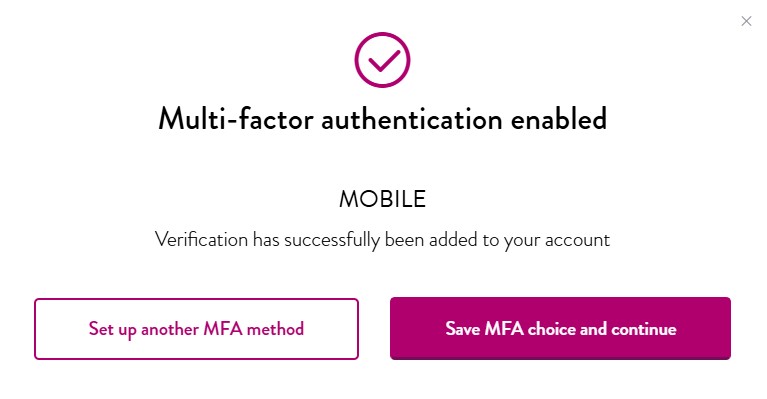
 Step 5: You have now enabled Mobile authentication as your MFA. You have the choice to set up another MFA method or save MFA choice and continue.
Other news and features

Scott Lipinski
GlobalScot and CEO of Fashion Council Germany, Scott Lipinski talks about fostering connections between Scottish and German fashion brands and his future plans with the GlobalScot community.

Lisl Macdonald
Champion for diversity in the workplace and owner of her own consultancy in Asia and Scotland, Lisl MacDonald is a formidable force. Find out how she shares her expertise as a GlobalScot. Lisl MacDonald set off for Strathclyde University to study marketing and law and quickly determined that law wasn’t for her. Marketing, on the other hand, was the perfect fit. She received sponsorship for her dissertation, which was very unusual for a student.